Employees With a Mobile Boarding Pass
Getting Started with TripShot
If you’re an employee at a company based in the Navy Yard (excluding contractors and U.S. Navy employees), you have complimentary access to Navy Yard Transit based on your work-provided email address.

Note for U.S. Navy Employees: Employees of the U.S. Navy are not eligible for complimentary access and must use the paid transit option in the app.
Follow the steps below to set up your account before your first ride.
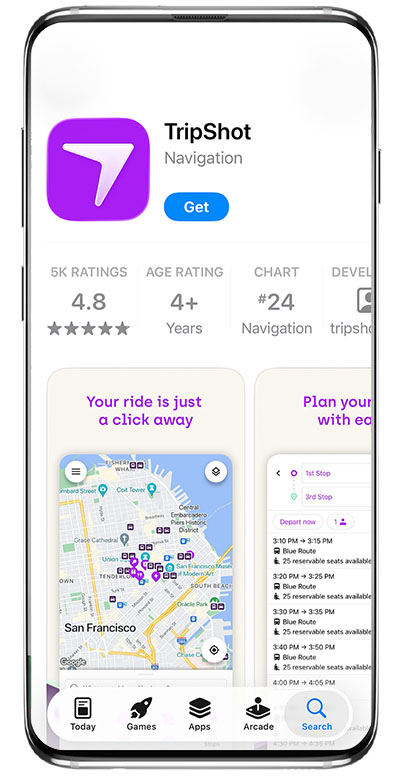
Step 1: Download TripShot
Download the TripShot app from the Apple App Store or Google Play Store.
Step 2: Find Navy Yard Transit
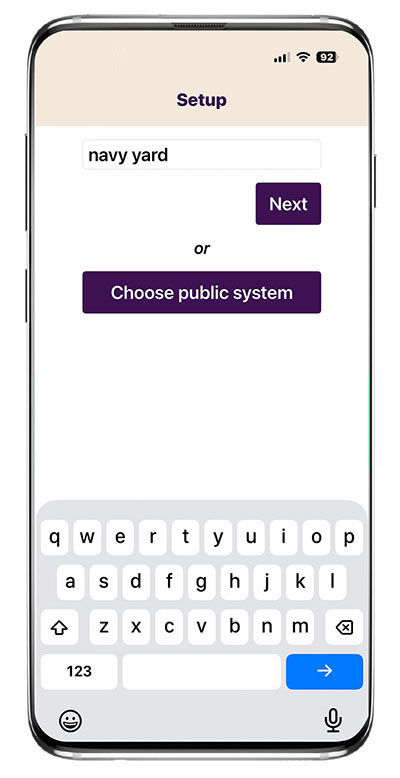
- Open the app.
- Search Navy Yard
- Select Philadelphia Navy Yard
Step 3: Create Your Account
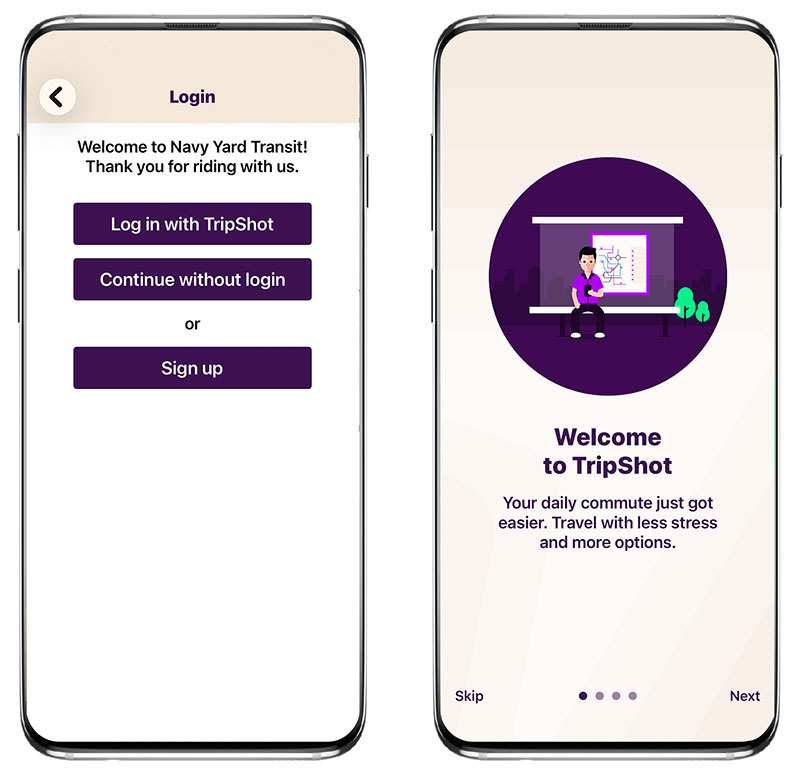
- Tap Sign Up.
- Enter your work email address.
- TripShot will send a verification email to your inbox. Follow the instructions in the email to create your password and complete your account setup.
Important: You must use your company-issued work email to receive a complimentary mobile boarding pass. Personal email addresses will not be eligible.
Step 4: Access Your Mobile Boarding Pass & Board the Bus
Bluetooth
When you’re ready to board:
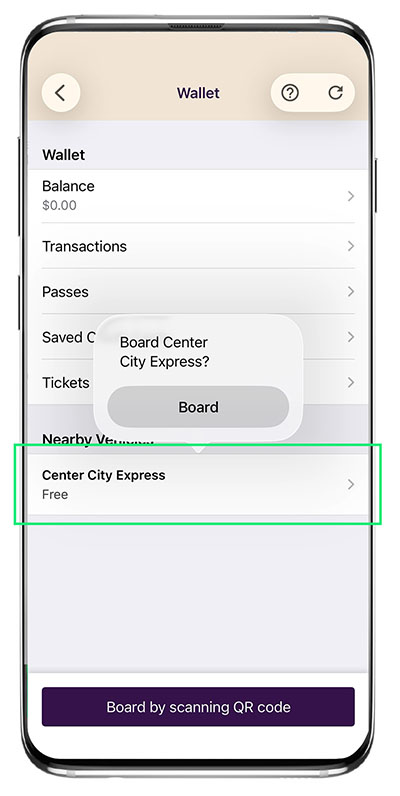
- Ensure Bluetooth is enabled.
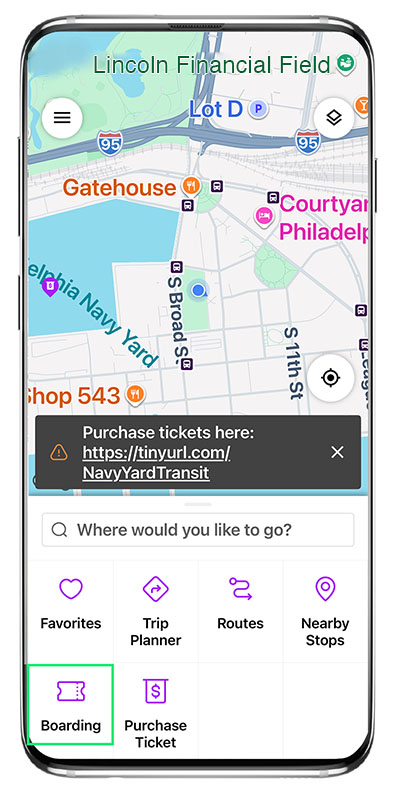
- Select Boarding on the Home screen and go to Nearby Vehicles.
- Select your nearby route and tap Board, and confirm
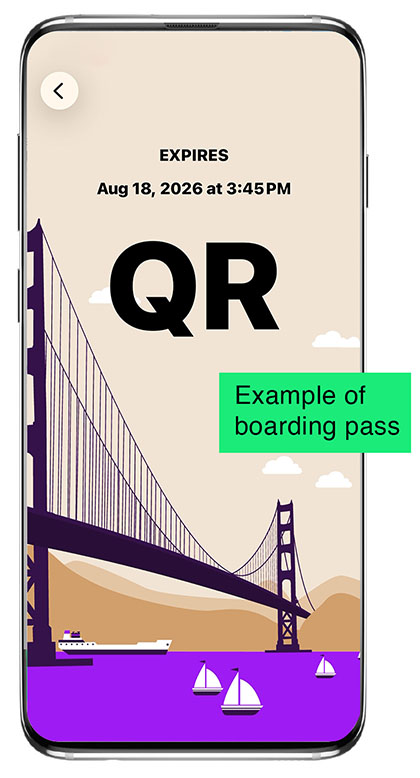
- Your digital boarding pass will appear. Show it to the driver to board.
Scan QR Code
Don’t have Bluetooth enabled?
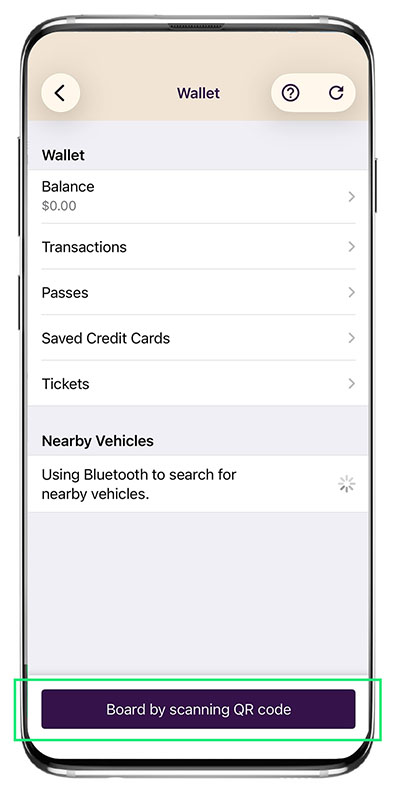
- Select Boarding on the Home screen.
- Select Board by Scanning QR Code.
- Allow camera access and use your phone’s camera to scan the QR Code displayed on your shuttle.
- Your digital boarding pass will appear — simply show it to the driver before boarding.
You’re Ready to Ride!
Use TripShot to:
- View buses in real time
- Access your mobile boarding pass
- See passenger and bike capacity
- Receive rider alerts
- View SEPTA routes
Questions?
Contact Yankee Line at 215-649-8890 or navyyardtransit@yankeeline.us.